-
Stop Wasting your Hard Drive Space: Clear the Clutter Safely with Disk Reviver
By Chris October 11, 2026No TagsNo CommentsOver time, every computer accumulates a massive trail of digital clutter. Temporary files, system caches, browser data, and forgotten downloads quickly pile up, stealing valuable storage space and sluggishly dragging down your PC’s performance.
Cleaning your hard drive doesn’t just give you back your storage; it helps your entire operating system run faster and more reliably. Below is a complete step-by-step guide to manually purging junk files safely without deleting anything critical, followed by a worry-free automatic alternative.
Part 1: How to Manually Clean Your Windows
You don’t need to be an IT expert to manually clean your system. Windows has several built-in utilities designed to erase temporary files safely. Follow these core steps to reclaim your gigabytes:
Step 1: Empty Your System’s Temp Folders
Many apps create temporary data but “forget” to delete it when closed. You can wipe these out manually:
1. Press the Windows Key + R on your keyboard to open the Run diaglog box.
2. Type %temp% and click OK. This opens your local user account’s hidden temporary folder.
3. Press Ctrl + A to select every item in the folder.
4. Press Delete on your keyboard. (Note: If a popup appears saying a file is currently in use, simply click Skip.)
5. Repeat the process by opening the Run box again, typing temp (without the percentage signs), and deleting the contents of that folder as well.
Part 2: Still Stressed by the Manual Mess? Let Disk Reviver Handle it!
While manual cleaning is effective, navigating hidden system folders, deciphering which files are safe to delete and running multiple different steps can quickly feel overwhelming. One wrong move or accidental deletion in the wrong directory could break a favorite program or cause system instability.
If you are having a hard time keeping track of manual cleaning, our Disk Reviver can take care of it automatically.
Instead of spending an afternoon hunting down buried log files and clearing individual caches, Disk Reviver does the heavy lifting for you with just a few clicks.
Disk Reviver runs a deep, comprehensive scan across your entire hard drive, instantly separating actual clutter from vital system data.
Why Choose Disk Reviver Over Manual Cleaning?
- One-click Maintenance: Scan, identify, and wipe out thousands of junk files all at once without jumping through multiple system menus.
- Risk-Free Safety Guards: Build-in safeguards ensure that only unnecessary junk files are removed, so you never have to worry about accidentally deleting an essential Windows system file or document.
- Smart Defragmentation: Beyond just cleaning, it automatically optimizes data placement on traditional hard drives, physically speeding up application load times in ways manual deletion cannot.
Maintaining a healthy PC shouldn’t feel like a chore. If you prefer to skip the manual headache and let a smart assistant keep your drive optimized in the background, you can download the application directly by clicking the link provided below.
DOWNLOAD DISK REVIVER, and Start To Relax!
1. Get our official product installer for free.
Click the link provided above to get the latest version of Disk Reviver.
When your browser prompts you to save the file, confirm the download.
2. Run the Downloaded File.
Once the download finishes, locate and open the DiskReviver.exe file in your computer’s Downloads folder.
A Windows User Account Control (UAC) message will pop up asking if you want to allow the app to make changes to your device. Click Yes or Run to proceed.
3. Follow the Installation Wizard
The installer setup wizard will open your screen.
Simple follow the quick, on-screen prompts to complete the installation. It usually takes less than a minute to complete.
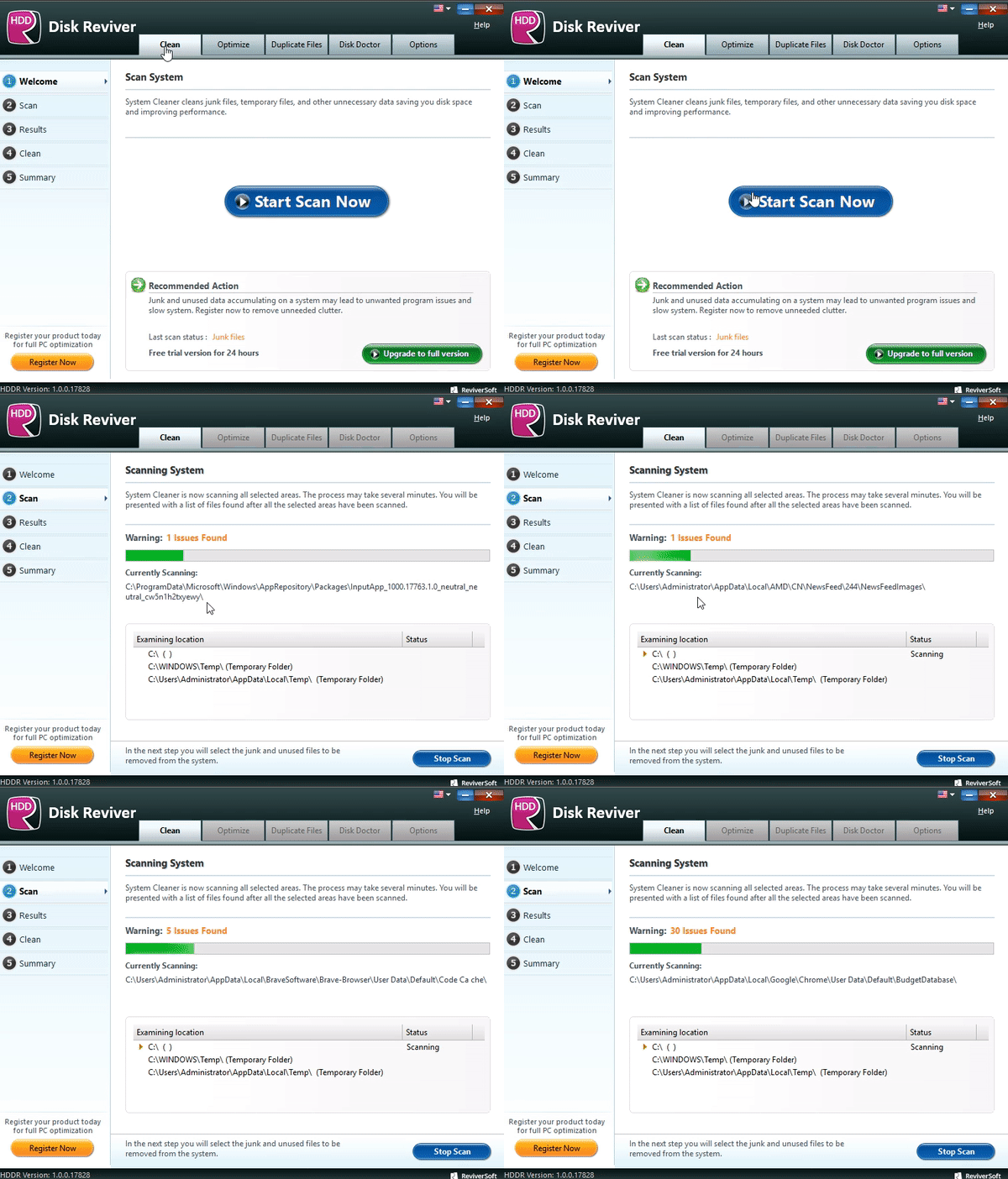
4. Launch and Scan
After the setup finishes, the program will automatically launch.
Click Start Scan to let Disk Reviver immediately analyze your system for temporary clutter, junk files, and fragmentation issues.
The Bottom Line: Your PC, Only Faster
Keeping your computer clean shouldn’t feel like a part-time job. While diving into Windows settings and purging hidden folders manually is a great way to understand your system, it takes time, effort, and a bit of technical confidence to do safely.
If you are having a hard time keeping track of manual cleaning – or you just want to avoid the risk of clicking the wrong file – let Disk Reviver do the heavy lifting. With a single click, it safely sweeps away gigabytes of hidden temporary junk, optimizes your drive, and restores your PC’s natural speed.
Skip the manual hassle and enjoy a faster, cleaner computer today by using Disk Reviver.
Got Questions? Please ask us.
Best Regards,
Chris and ReviverSoft Team
Was this post helpful?YesNoFree Driver Updates
Update your drivers in less than 2 minutes to enjoy better PC performance - Free.
Free Driver Updates
Update your drivers in less than 2 minutes to enjoy better
PC performance - Free.
Didn't find your answer?Ask a question to our community of experts from around the world and receive an answer in no time at all.Pin It on Pinterest