-
How to Protect your PC From AI Threats Without Lifting a Finger.
By Chris October 10, 2026No TagsNo CommentsThe threat of AI-driven hacking is no longer a futuristic concept-it is happening right now and everyday laptops and PCs. Today, cybercriminals use AI to churn out unique malware variants every few minutes and deploy automated scripts that quietly alter your system settings without your knowledge. By the time a user notices their computer is running slow or a browser is behaving strangely, an automated attack has already taken root deep within the Windows operating system.
While users can manually fight back by regularly clearing browser tracking cookies, auditing their Windows Startup menu, and reviewing the Windows Registry for unauthorized changes, doing this manually is exhausting and leaves room for human error.
Security Reviver solves this problem by handling the entire defense process automatically. Once installed, its Active Windows Shield continuously monitor your system in a background, instantly blocking unauthorized registry modifications and isolating AI-generated payloads. By combining deep-directory scanning with automated real-time protection, Security Reviver eliminates the guesswork, securing your computer without requiring you to lift a finger.
Secure Your PC Effortlessly with Security Reviver
In an era where cyber threats evolve rapidly, maintaining robust digital hygiene should NOT be a second job. Security Reviver delivers a “set-and-forget” solution that continuously screens your system for spyware, malware, worms, and adware. By handling real-time monitoring and threat neutralization automatically, it ensures your data stays safe without requiring any technical expertise from you.
Step-by-Step Installation and Setup Guide:
Step 1: Download and Install Security Reviver
- Download the latest version of Security Reviver: Kindly click the link provided below to safely download the program directly from us. Download Security Reviver.
- Launch the File: Locate the downloaded setup file (usually in your Downloads folder)
- Follow the Prompts: Follow the on-screen setup wizard instructions to complete the installation process on your Windows machine.
Step 2: Running Your First Security Scan
1. Open Security Reviver. Launch Security Reviver from your desktop shortcut or Windows Start Menu.
2. Choose Your Scan Type: Navigate to the scanning dashboard where you can select your preferred level of inspection:
- Quick Scan: For a rapid check of your most vulnerable system folders.
- Deep Scan: For an exhaustive, thorough sweep of your entire hard drive.
- Custom Scan: To target specific drives or directories of your choice.
3. Start the Scan: Click the scan button to let the Security Reviver automatically search for hidden threats and vulnerabilities.
4. Clean and Neutralize: Once the scan finishes, review the detected items and click to safely remove, restoring PC to optimum security.
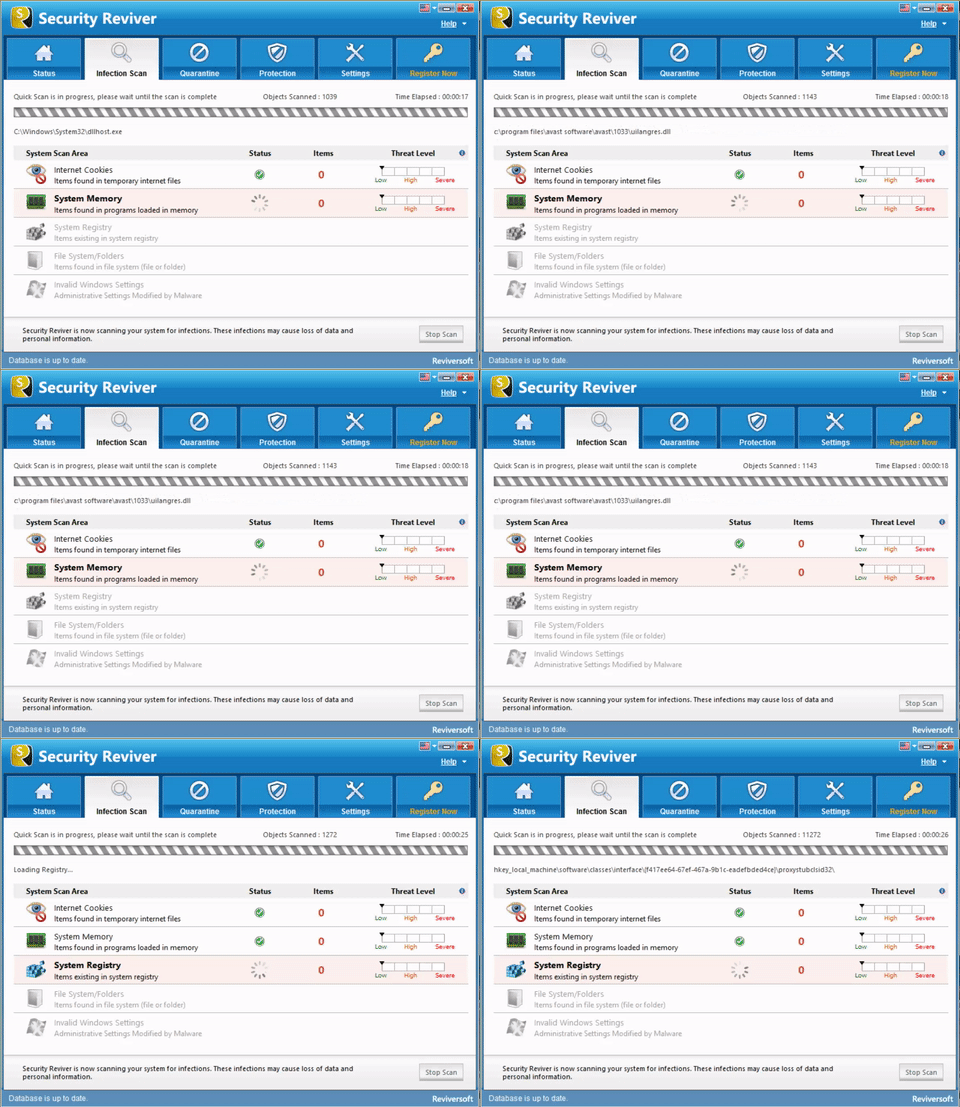
Download, Install, and Relax. Security Reviver has got you!
Questions? Please feel free ask.
Best Regards,
Chris & WinZip Team
Was this post helpful?YesNoFree Driver Updates
Update your drivers in less than 2 minutes to enjoy better PC performance - Free.
Free Driver Updates
Update your drivers in less than 2 minutes to enjoy better
PC performance - Free.
Didn't find your answer?Ask a question to our community of experts from around the world and receive an answer in no time at all.Pin It on Pinterest